How to Spot a Mobile Scareware Scam Before It Tricks You
Learn how mobile scareware uses fake security warnings to trigger panic, prompt calls, and install unwanted apps—and what to do if one appears on your phone.
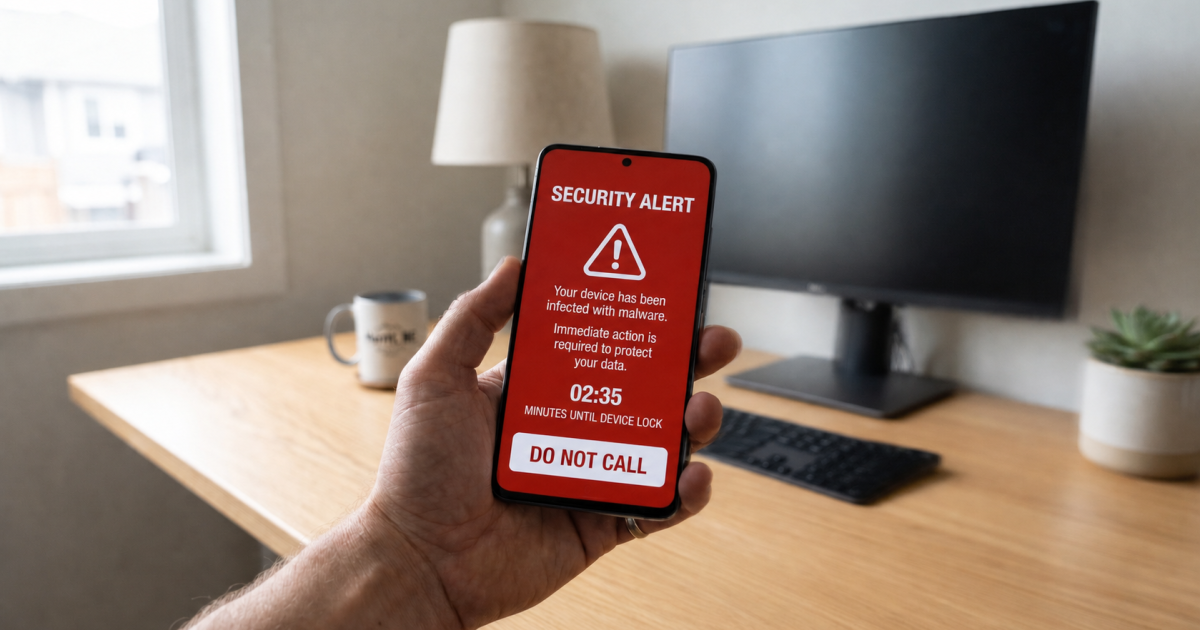
We recently helped a customer who came into our shop after an aggressive pop-up took over their phone's browser. The screen displayed urgent warnings directing them to call a support line or download software to fix an issue on the device.
While the initial pop-up warning was just a web page attempting to trigger panic, following those prompts had led to a significant amount of unwanted software being installed on the device.
This tactic is known as scareware. These alerts open the door directly to fake billing and tech support scams. Beyond phone calls, these messages typically invite you to install fake security apps that cascade into even more fake apps being loaded onto the phone. It creates a self-serving cycle of abuse: the fake cleanup tools continuously generate false threats or install additional rogue software to justify ongoing service charges.
Here is how mobile scareware operates, how to identify it, and what steps to take if it appears on your screen.
What Mobile Scareware Looks Like
Scareware relies on visual tactics and technical tricks to simulate a system failure or security breach. On mobile devices, it typically appears during normal web browsing, triggered by redirected ad networks or compromised links.
- Fake System Alerts: The pop-up mimics official software notifications, system dialogs, or security warnings.
- Artificial Urgency: The page uses elements like timers, repeated prompts, or flashing elements to push for an immediate reaction.
- Navigation Lock: The web page expands to full-screen or continuously launches dialog boxes to hinder standard navigation and prevent you from closing the tab.
- Prompts to Act: The page directs you to dial a phone number, tap to run a "fix," or authorize an external app download.
Key Technical Realities
Web browsers cannot scan a mobile device's file system. A standard web page running inside a mobile browser operates in a restricted sandbox and lacks the system permissions needed to inspect internal storage, diagnose hardware, or detect file-level threats.
- It originates from a website. Check the address bar. If the URL displays an unfamiliar web address, it is an external website mimicking a system message.
- Real operating systems do not request phone calls. Neither Apple, Google, nor major device manufacturers present support phone numbers through web browser pop-ups.
- Uncharacteristic interface design. Official system notifications follow standardized design patterns. Scareware frequently uses non-standard graphics, device vibration APIs, audio alerts, or countdowns to force attention.
Recommended Steps
If a suspicious prompt appears on your screen, do not select any links or call any displayed numbers.
- Force Close the Browser: Open your device's app switcher and swipe the browser app off the screen to terminate the process.
- Audit and Uninstall Unrecognized Apps: Open your main Settings menu, go to your Application list, and review everything installed. Remove any utility, cleaner, or security app you do not explicitly recognize or remember installing.
- Clear Browser Data: Navigate to your browser application settings (such as Chrome, Safari, or Firefox) and clear the cache and site data to prevent the malicious page from re-opening.
- Refuse External Downloads: Do not install application packages (such as
.apkfiles) or device configuration profiles prompted by a browser window. - Reboot the Device: Restarting the phone clears temporary system memory and stops lingering background processes.


Comments powered by Talkyard.